
Open provider settings
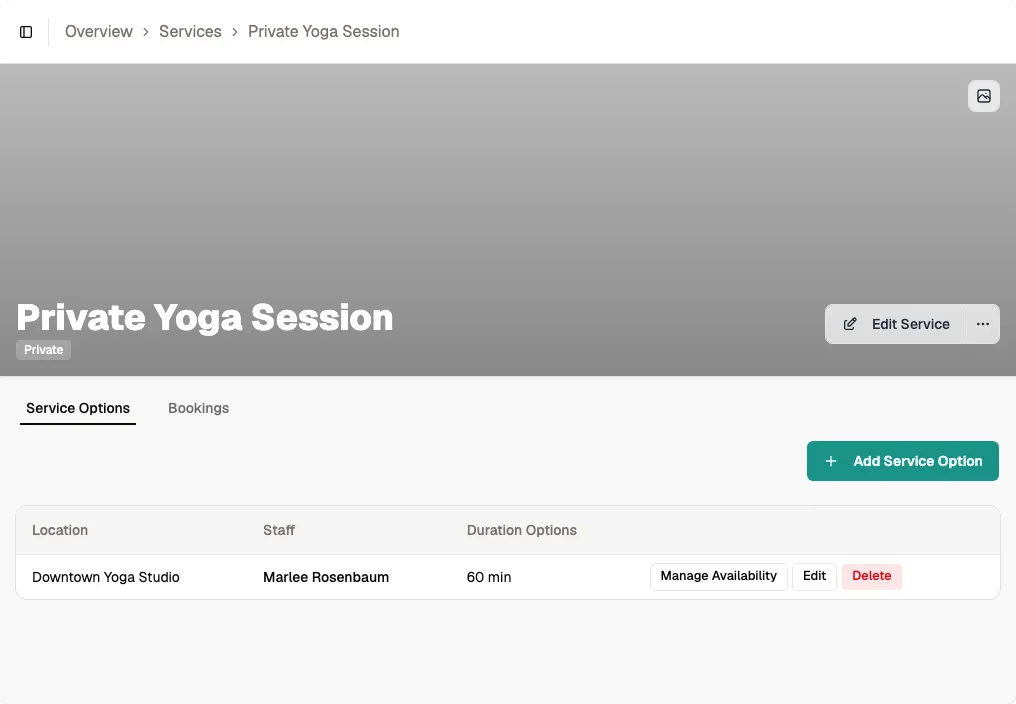
Navigate to the service detail page, switch to the Service Options tab, and find the provider you want to configure.
Click Manage Availability to open the weekly schedule grid.
Add standard and peak availability slots
Turn on each available day, click Add Slot, and enter a start and end time. Add multiple slots when the provider takes a break, such as 09:00-12:00 and 14:00-18:00.
Mark a slot as Peak hours when bookings starting in that range should use the optional peak-hour price configured on the service option.
Tip A 60-minute booking that starts at 11:00 needs availability through at least 12:00. Peak status is determined by the selected start-time slot.
Save and preview
Click Save. Open your public booking portal and check that the provider's available slots appear correctly.
Make a test booking to verify the start time, duration, and calendar blocking all work as expected.